Tuesday, March 31, 2015

Tech Tuesday For March 31

Good Morning Everyone!

I've got a couple of things to share with you today that you might find helpful in yours classes at South and any college courses you might be taking.

Easy Citations with EasyBib Google Add-On

Here is a video I did with EasyBib to show how to use the EasyBib Add-On with Google Docs that makes it easy to create a Works Cited. I did this through my Google Certified Teacher program where other teachers and I created a website that features short tutorials on how to do little tech items. Our website is called PDWithoutBorders.org. Check out the other videos we have there if you are interested.


Last year, I organized an unconference at Wayne State University and it was a huge hit! I'm happy to say that Edcamp Detroit will be back at Wayne State on Saturday May 9th. You can checkout our website at EdCampDetroit.org or click here to be taken directly to registration.

Like last year, this conference will be free for all who attend! I have been to many different Edcamps and I have to say it has been one of the best learning experiences I have been part of. There were many GPPSS teachers there sharing and learning with teachers from all over the state. I hope to see them and many new faces at Edcamp Detroit 2015!

Here is a video that explains a bit more of what edcamp is.


Monday, March 16, 2015

Tech Tuesday March 17

Happy Tuesday everyone! I have a couple of things I wanted to share with you before Parent/Teacher conferences.


The above link will take you to a Google Slide Presentation that will walk you through the steps to send a grade report to parents. I have found this to be a very helpful way to let parents know how the students are doing and it is nice to have it sent out before conferences to keep parents informed of how their child is doing in your class.

Here is the quick survey from last week. Many of your filled it out and I wanted to give others a chance to take a look and share their thoughts. I created this anonymous survey so I could better help you with your tech needs. It would be a great help to me if you could quickly share some information. Thank you so much.


Thank you for all that you do to make GPPSS great for all students!

Nick

Monday, March 9, 2015

Tech Tuesday for March 10

Hello gang! I wanted to share a quick survey and a tech tip with you for today. The tech tip below is about using accents on a Google Doc. Sorry Latin, it doesn't have that for you, but I'm still looking.


Easy Accents Add-on

For the language teachers (Sorry Latin, it doesn't work for you.) Doing accents can be a pain in Google Docs. Well, here is an add-on to Google Docs that can make your life a bit easier.

Follow the link above and add the Add-On to your Google Docs account. You will then find it here,


We have French, Italian, Spanish, and much more. This is something you can share with your students to help them with their writing in class. If you need help with putting this on your Google Account, please let me know and we can meet and set it up. 


Tuesday, February 10, 2015

Tech Tuesday for February 10

Happy Tech Tuesday everyone. I hope everyone is feeling well and has great plans for the upcoming break. I've got some great tools to share with you that will help you and your students.

EasyBib Google Docs Add-On

Getting students to properly cite their work is an ongoing issue in the classroom. While many of us had to memorize the proper format of citations in a bibliography, there are now tools available for students to use that make it easy for them to create their works cites pages. EasyBib has a Google Docs Add-on that allows users to create bibliographies right in the documents so they do not have to leave the page. They can cite, books, journals, and websites right from the Google Doc. Here is a video that walks through this cool add-on to Google Docs.


There is a great tool in Google Docs that also allows you to do research, add footnotes, and cite images. Here is a video that walks you through how to do this so you can show it to your students. 


I wanted to share one last resource with you. As part of my Google Certified Teacher program, GCTs had to create a project that is designed to improve education. A teacher from Mexico and a teacher from Canada have come together with me to create short videos to show off cool webtools that can be used in the classroom. We will be uploading 3 videos a month and I'll share those out when the become available. Here is one of the first videos that shows a very neat tool that allows users to take notes on a Google Doc while watching a YouTube video on the same page. It is called Videonot.es and it is great. Check it out!


If you have any questions, please let me know. 

Have a great day and I hope you give them a try!

Tuesday, December 2, 2014

Tech Tuesday for Dec 9

Welcome back everyone. I hope all of you had a very nice Thanksgiving break.  If you are Canadian, I hope you had a very nice regular Thursday. :-)

Here are some cool things that might help you in your classroom or give students another option for their projects. If you have any questions, please let me know and I'm happy to meet with you during 2nd hour, 4th hour, and before and after school.

If you have not filled out this survey, please take minute to do so. I will be building PD for all of you based on the feedback. Here is your chance for your voice to be heard.

Easel.ly

Easelly is a free website that allows you to create infographics. Infographics are a great way to present information to class. Boring data or statistics can now be shown through easy to create visual illustrations.

Easelly has pre-made designs or you can upload your own images if the selection is does not meet your needs. When you have created your infographic, you can save it as a PDF or JPEG. You can also embed them on your website or your blog like this one.

websitewer
easel.ly

I took one of the stock infographics and dropped it into my blog. You can take the stock infographics and changed them how you want to make them fit your needs. This is a fun tool that allows you to sign up easily with your Google Account, so students could do this quickly in the computer lab. Easelly is a great option to give students when they work on presentations.

Scribble Maps

A few teachers from my PLN suggested that I take a look at Scribble Maps. I cannot thank them enough for encouraging me to look around. If you are familiar with Google Maps, this will not be a problem for you to use. The website uses Google Maps and allows you to draw on the map you have focused on. You can draw by hand, create circles or boxes, create text and even add images. This is a great way to use the SmartBoards in the classroom. Take a look at my example. You can save them for later editing or you can save them as JPEG's so you can add them to other documents like this:


Here is one I just did of South. It only took me 5 Minutes to draw, save and upload this picture.

You can do all sorts of things with this program. They have Terrain Maps, Satellite Maps and Hybrid Maps that you can use for different lessons. I know many teachers are always looking for different ways to incorporate their SmartBoards into their lesson plans and I think this is a good tool to use with the students. This could also be used in other classes as well. In English, I could see using this to show the students where the story is taking place and adding my own visuals to the map. Perhaps a map showing East and West Egg and adding different pictures from The Great Gatsby so the students can see where the story takes place. You have as many options as you can think of with this cool tool. 

Tech Survey 


Thanks for all of your support!

Nick


Tuesday, November 11, 2014

Tech Tuesday for November 11

Happy Tuesday everyone!

Here are some cool resources that are worth checking out.

Blubbr

This is a cool tool I learned about from Richard Byrne and his cool website. Blabbr allows users to take YouTube clips and create multiple choice quizzes based on the clip they just watched. The correct answers are shared right away. I see this being great for reviews as students prepare for exams. Check out this one someone created for the Blood flow Through The Heart.


A couple of weeks ago, we received an email about managing multiple Google Accounts. Here is a video that was shared that shows you how to handle multiple email accounts. It is important to remember to only use your school related email and Google Accounts for school related communication only. Save personal emails and personal documents for your personal email and Google accounts. Thanks John Sowash for the awesome video. 


Blabberize is a very fun site that could be used in a single class period in the computer lab. It's an online computer tool that allows you to add your voice to a picture of your choosing. The cool part of this is that you can select the area over the images mouth and the mouth will open and close while it plays the recorded message.

The message can be recorded via microphone, audio file or your cell phone. The cell phone option is really neat if you do not have a microphone on your computer at home. It gives you a number to call and a 4 digit pass code and the site will record your voice and save it to the picture you have selected.

You could use this as a fun option for students to find characters from a novel and record their favorite line or lines from the story that best suit them. At the end of the class period, you could play a selection for the class. If you are a History, you could use the site to have kids record parts of speeches for historical figures.

This site might not revolutionize education as we know it, but it is a nice tool to have in your drawer if you decide to do something a little different with your students. If you are not sure how to use it in class, just show the students and I'm sure they can come up with some fun ideas for class projects.

Here is my goofy example. It only took me 5 minutest to put together.


Try having some fun with Blabberize and see the silly thing you can do with it. You might just want to create a few fun pictures and place them in a Power Point or on your class website. Give it a try!


Tuesday, October 14, 2014

Poll Everywhere Tutorial and QR Codes

Here is a great blog post on how to use Poll Everywhere and a tutorial video on getting started. Great work from Greg Kulowiec.

The Post - Poll Everywhere Advice and Questioning Strategies


Here is a post from our district that explains the different ways that QR Codes can be used in the classroom for PT Conferences. It provides links to apps for your mobile device and some possible uses for you in the classroom. Take a look and see how these might be used for your upcoming conferences. 


Tuesday, September 30, 2014

Google Doc Tips And An Add-on For Math Teachers

One of the most common things I hear from Math teachers is that using Google Docs is not easy for them because they cannot write their math formulas. Well, there is an easy solution that should help all of the Math teachers.

(g)Math

(g)Math is a Google Docs Add-on that allows Math teachers to add equations to their documents. By clicking (g)Math, you will be taken to the Add-on page of Chrome and you will want to click install. Here is a video that explains everything that you can do with (g)Math.


Using Google Docs with students can be very helpful. Instead of making multiple copes of various worksheets with problems you have created, you can share a document for students on Drive. Also, making regular changes to the Google Doc from home is much easier than having to do it from school. I'd love to hear how you use (g)Math in your classroom. 


Here is a great public Google Doc that offers some wonderful tips on using Google Docs. Here are just a few of the 100 that are worth looking at. 

Productivity Hacks
These hacks will make your Google Docs experience even more efficient and streamlined.
  1. Templates: Use Docs’ 300 templates to get started on different types of documents.
  2. Work offline: View and edit documents even when you don’t have access to an Internet connection.
  3. Create shortcuts: Create shortcuts and bookmarks for new documents, Google Docs home and more frequently visited pages.
  4. Save as different file types: Instead of converting docs to different file types, you can simply change it to HTML, RTF, PDG, ODT and more whenever you save it.


Edits
With these editing tools, you’ll track comments, save editing history and more.
  1. Color-code comments: You can color-code live comments in Google Docs.
  2. Revision pruning: When you have too many revisions, they’ll automatically collapse, or prune, but can still be viewed in revision history.
  3. Track edits and changes: In Google Docs you can go back and forth between edits that you or collaborators made.
  4. Revision history: View older versions of your document, and choose to "revert to this one" if you choose.
  5. Find and replace: This version of find and replace lets you match cases, match whole words, find previous words, and more.

There are many more on the doc that you should check out if you are looking to to find some of the new things you can do with Google Docs.

If you ever need any help with your Google Drive or other technology, send me an email and I can drop by your room 4th hour to talk about it.

Have a great day!

Nick


Monday, April 14, 2014

Tech Tuesday for April 15

Sorry for the long delay in posts! It has been a crazy school year and I've been meaning to share with you some very cool things. Checkout the neat things you can use for your classroom.

TEDxGrossePointeSouthHS


In January, I was granted a license by TEDx to host a TEDx event at Grosse Pointe South. This is connected to the 20 Time projects my students have been working on all year. Students from Grosse Pointe South will be sharing their thoughts on education and other topics they are passionate about on Saturday June 7 at Grosse Pointe South's Auditorium. Their talks will be live-streamed to the world and saved on the TEDx website. Space is limited, so please sign up before it is too late. Please show support for some amazing students sharing amazing things they are doing.


NewspaperMap


Newspaper Map is an awesome site that allows a user to locate newspapers from all over the world. A user can help narrow down the papers by setting the search parameters in the upper left corner. I can see this being great for our World Language classes and for our Social Studies classes as well. Take a look and see all of the different papers out there and how they might be used in your class.

Swivl - Making the Flipped Classroom Much Much Easier

I heard about Swivl from a friend who attended a conference on the Flipped Classroom and it sounded amazing. I reached out to Swivl and was able to use a demo model for this piece.


Swivl is a robot that allows you to record everything you have wanted in a classroom. By wearing or holding on to the Marker, Swivl will follow you around the room and record your audio. Take a look at the graphic below for more details.


The idea is pretty simple. Have a camera follow the user around as they teach a lesson. The Marker can hang around the neck and it will be tracked by Swivl. The Marker has a microphone in it, so it will record the audio from there, so standing far away from Swivl does not matter.


I was able to carry the Marker around and pass it to students so they could share their answers and have it recorded on the video. It was easy and the audio sounded great.


All of this is done through the Swivl Capture App that connects your device directly to the robot. From the app, you can record your lesson or upload slides that will then be incorporated into the video you are recording. So, if you have slides your students will see on the wall, you can upload those slides to the Swivl app and move through them with the Marker. This connection is all done through Bluetooth and it was seamless to set up and use.


Swivl runs on battery and can be charged each night so it is ready for the next day.


Swivl also provides a cloud service for all users. Everyone starts off with 200 total minutes of video, but they do offer upgrades you can purchase.


Using the Swivl Cloud is great for teachers that want to record their lessons, but restrict who has access to it. While the videos that are recorded could be downloaded and uploaded to YouTube, the Swivl Cloud allows users much more control over the content and would address privacy concerns some parents or districts might have regarding the recording of class. The group management is also very nice so the user can create specific groups for students to join and access specific videos that have been shared by the user. 

For me, I often have discussion that head in different directions in different classes. I would love it if other students could see those conversations and add that to their notes. It is a great way to expand my classroom as an English teacher so more of my students can see and hear the ideas of their peers. I also see this as being huge in Science, Math, Social Studies, Foreign Language and many other disciplines because of the ability to easily record video and audio and make it available to students. 

The Swivl robot is wonderfully made and works flawlessly with my 4th Generation iPad. It also works for the iPad Air, 2nd - 4th Gen, iPad Mini 1st and 2nd Gen, iPod Touch 4th and 5th Gen, as well as the iPhone 5S, 5C, 4S, and 4. They are testing other Android models and cameras as well. 

The overall price for the Swivl robot is $299 with options for a $499 and $799 package that will also add the different levels of Swivl Cloud. 

If you are looking to Flip your classroom and have been striving to find the right tool to make it possible, you should really consider the Swivl. It is portable, so it can be shared in the department. It is easy to set up and use. It works with devices you might already own. It provides wonderful audio recording that is perfect for making great videos. I'm recommending Swivl to all of my teachers looking to Flip their classrooms. You should check it out as well. 

Blabberize

The example I posted might have trouble loading on the school computer. Maybe it's just slow today. Check it out at home if the computer is taking too long to load it.


Blabberize is a very fun site that could be used in a single class period in the computer lab. It's an online computer tool that allows you to add your voice to a picture of your choosing. The cool part of this is that you can select the area over the images mouth and the mouth will open and close while it plays the recorded message.


The message can be recorded via microphone, audio file or your cell phone. The cell phone option is really neat if you do not have a microphone on your computer at home. It gives you a number to call and a 4 digit pass code and the site will record your voice and save it to the picture you have selected.


You could use this as a fun option for students to find characters from a novel and record their favorite line or lines from the story that best suit them. At the end of the class period, you could play a selection for the class. If you are a History, you could use the site to have kids record parts of speeches for historical figures.


This site might not revolutionize education as we know it, but it is a nice tool to have in your drawer if you decide to do something a little different with your students. If you are not sure how to use it in class, just show the students and I'm sure they can come up with some fun ideas for class projects.


Here is my goofy example. It only took me 5 minutest to put together.


Try having some fun with Blabberize and see the silly thing you can do with it. You might just want to create a few fun pictures and place them in a Power Point or on your class website. Give it a try!


Sphero 2.0 Can Bring Coding To Your Classroom

Before you read anything else, please watch this video so you can get a feel for what Sphero 2.0 can do.


I was sort of into RC cars when I was little. I would drive them around the house and run into things and generally scare the crap out of my dogs and cats. Those fun memories came flooding back to me after I had a chance to play with Sphero 2.0

I have to say, the Sphero experience is way better than any RC car I had growing up. By connecting the Sphero to my iPhone using a Bluetooth, I was able to control Sphero very easily. The movements were just as smooth as you saw on the video (You did watch the video right?) and controls were easy to understand. My students picked up my phone and were able to control Sphero without any instructions. 

I love that there are many apps available to do different things with Sphero. Here is a picture of the apps I have on my phone. 


The Drive app is simple driving and changing colors. It has some pre-programmed patterns it can do and flashing multicolored lights. It is a great app to get a user comfortable moving Sphero around. 

Draw and Drive is exactly what the title says it is. You can draw the path you want the Sphero to take and it will follow that path. It takes some getting used to to fully understand how far a line drawn is to the actual surface you have, but once that is figured out, it is a really fun app to play with in a large space. 

Rolling Dead is an Augmented Reality game that allows you to roll Sphero around and shoot zombies that crawl out of the ground. Here is a shot of some zombies and Sphero in my school hallway. 


This is a fun game that takes some time getting used to moving the device to follow Sphero to keep it in the camera view, moving Sphero around, and shooting zombies. After a few minutes of playing with it, my students were soon competing for high scores. 

One of the coolest aspects of Sphero is the fact that it has an app that can allow for some coding. This is really what sparked my interest as I thought about the implications a device like this could have in the classroom. The MacroLab app allows users to design their own programs for Sphero

A person can design their own paths, color combinations, and any other tricks they can think of with MacroLab. As I think more about coding for younger students, I love it when I see something that could fit perfectly in a classroom. Here is a shot of one of the programs that can be run using the app. 

Orbotix has launched their education page that has lesson to make Sphero part of your class. They have also launched an #SPRKScholarship contest on Instagram. Check it out so you can bring Sphero to your class.

Sphero 2.0 is priced at $129.99 and I think it is worth every penny. The apps that are available are free and will lead to hours of enjoyment and learning for adults and students. If you have a budding programmer in your house or classroom, Sphero is a fun way to get started. Heck, if you have wanted to do a little programming, Sphero is perfect for you too. 

Thanks for taking the time to check these out. If you have any questions, please let me know and I will be more than happy to help. 

Nick

Tuesday, February 4, 2014

Tech Tuesday for February 4

Happy Tuesday everyone. I have a couple of goodies to pass your way this week. Take a look and give them a try. As always, feel free to drop me a line if you have something you want to share with me or a question to ask. Have a great day!

DragonTape

DragonTape is a cool program that allows you to make mix-tapes of YouTube videos. You can select the videos you want, edit them together and play them on one continuous loop. This is perfect for the teachers that like to show multiple clips for class instruction. Instead of bouncing from one video to the next and having all of that load time, you can put all of the videos together and hit play and pause as you need. You are given one link for all of the videos and you can share that however you want.
When you are done, you can embed the mix on your website and share through social media. This is great for sharing videos that students might have missed in one spot on a website instead of having them bounce through different videos. There is even an app on iTunes if you want to mix on the go.

Here is a mix I made of my favorite SoulPancake videos guaranteed to make you smile and possibly shed a tear. (If the video is not playing, click the link to check it out.)


Here is a simple tool that adds a little pizazz to selecting students for various things in the classroom. This is a free tool that allows you to enter the names of your students and spin the wheel. When the wheel stops, the student's name appears and they have been selected. What is nice about this tool is that it gives the teacher and option to remove the name after they have been chosen. This eliminates the chance of the student being called on more than once if that is a concern. What is neat, is that this spinner can be placed on a website for future uses. You can create it once, embed it, and come back to it when you need it on your own website. It's a little tool that can make some tasks in class a bit more fun. 


Tuesday, January 21, 2014

Tech Tuesday for January 21st


Happy Tech Tuesday everyone! I have some cool things to share with you this week. I hope you have a moment to check them out. 


I am beyond excited to announce that Grosse Pointe South High School will be hosting a TEDx event June 7, 2014! As part of my students' 20 Time Projects, I worked on my own project to bring a TEDx event to South so my students could share their work on a world stage. More details will be shared as we move closer to the event, so stay tuned!

Here is my Cloud Tools survey for the book I am working on for Corwin Publishing. If you have a minute, please share what tools you use in the classroom so I might be able to feature some of the amazing things Grosse Pointe Teachers are doing. 


Photo Pin

Photo Pin is a great site that allows Bloggers to use images free of charge. Now, many of you might not be Bloggers, but you might be assigning more web based projects and this is a great tool to share with your students who are looking for picutres. Some of the pictures shown will say there is a charge, but there are many more that are free to use. It is never a bad thing to have extra search options when it comes to photos. 

Block Posters

Have you ever wanted to take a picutre and blow it up into a poster? Well, with Block Poster, you can do that with just a few clicks of the mouse. Block Poster is designed to allow a user to choose how many sheets of paper they would like their blown up poster to use. You can scan in student work and blow it up for your classroom or hallway. This would be a great way to surprise students and share their work with everyone. Once pieced together, the poster could be laminated and given to the student to take home. This looks like a great site to share with your students and parents. 


Sum Cloud is a fun site for young math students that works great on the Smartboard. Using 6 different levels of difficulty, the game allows kids to take a look at the possible answers and select them. It's a fun game to have kids practice their Math skills.


Thursday, January 16, 2014

Tech Tuesday for January 14

Welcome back everyone! We had some snow days added to our break and I hope everyone enjoyed their time off. I'm excited to share some cool things with you and ask you for a little favor if you have the time.


Richard Byrne is great at finding and sharing amazing tools for educators to check out and possibly integrate into their classroom. His website, Free Technology for Teachers, is always a "go to" spot for me when I am looking for something new to check out for my classroom. 

In this post, Richard shares 7 great whiteboard tools that teachers and students can use to collaborate. If you have been looking for other tools to use with your Smartboard in your classroom, take a few minutes and check out what Richard has shared on his site. 


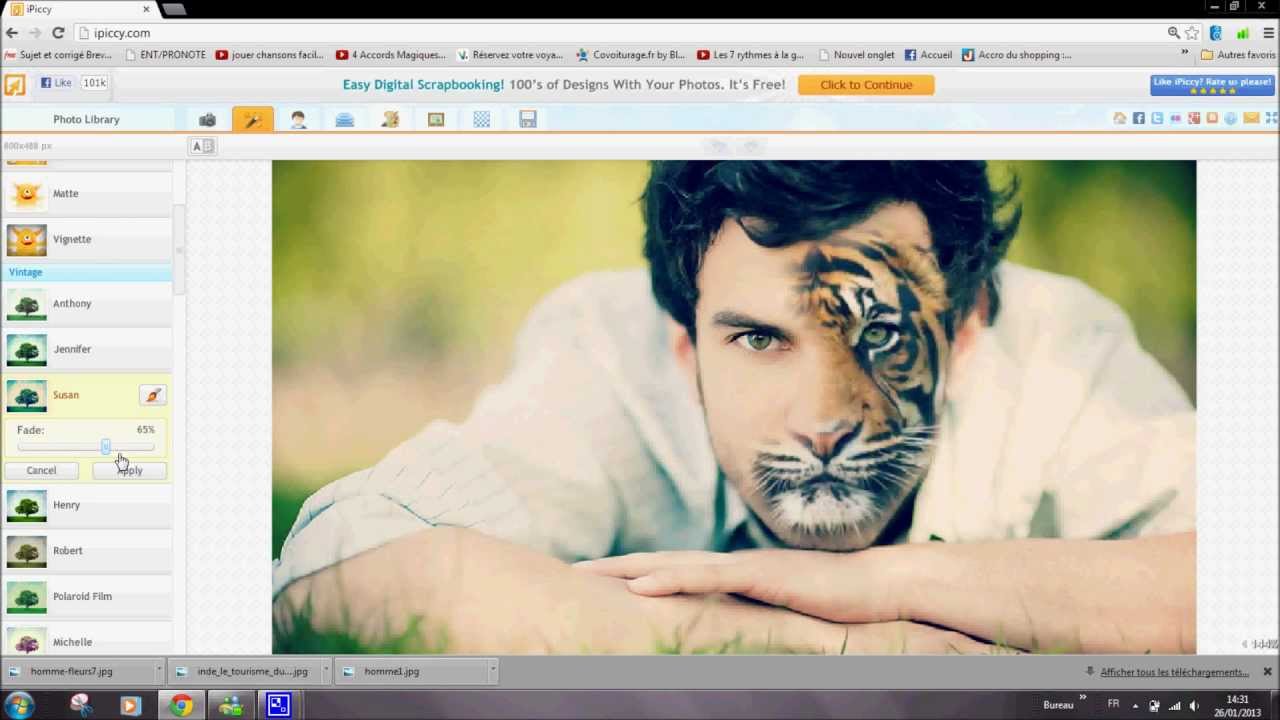
iPiccy is a free photo editing website. All of the touch-ups or photo editing you have wanted to do, but felt you couldn't because you didn't have Photoshop, can be done on iPiccy. 

Here is an example,


I'm not sure how often you will need to create a Tiger/Student hybrid for your class, but you could do it with iPiccy. I have used it for quick cropping and some added text for things on my website or slides for presentations.

You do not need extensive photo editing experience to figure out iPiccy. It will guide you along the way and you will become a photo editing guru in no time.  


Before break, I signed on with Corwin Publishing to write educational technology books. My first endeavor is a book about Cloud Computing. As part of the book, I want to feature teachers that are using these tools to provide practical examples for other teachers to see how they are used in the classroom. 

I know there are many great things happening in this district and I would love to share them with the world in my book. If you have some time, please fill out this survey and share how you use Cloud Tools in your classroom. 


Thanks you so much for your time and have a great day! 


Tuesday, December 17, 2013

Tech Tuesday for December 17

Happy Tech Tuesday everyone! I wanted to share a couple of cool tips and tricks regarding Edmodo. Some have started to use it, but might have hit a snag here or there. Here are some great places to start your Edmodo adventure or see what others are doing with Edmodo in their class.


10 Tips for Getting Started with Edmodo

Here is a nice blog post on the Edmodo website written by a teacher that used it his class. These are very short and simple tips on how to use Edmodo in your class to make your day to day life as a teacher a little bit easier. This is a great read for those that are looking to start using Edmodo in the second half of the school year.

15 Brilliant Ways to Use Edmodo

Here is another post by Edmodo on how to use their site with your classrooms. What I like most about this post is that it has people you can connect with after each suggestion. You might like the idea on the page, but you could still have questions. You can connect with the teachers listed and ask them how they do it in their classroom. The post is a few years old, but the ideas still work. I know of many teachers that are doing amazing things with Edmodo and swear but it in their classroom. The Edmodo team is also a great group of people that are very helpful. If you need help, ask for it through email or Twitter (@Edmodo) and they will get back to you.

20 Ways to Use Edmodo in the Classroom


Here is just one more resource on using Edmodo in your classroom that is worth checking out if you are really committed to using it or are looking for reasons why you should start. 

Tuesday, December 3, 2013

Tech Tuesday for December 3

Welcome back everyone! I hope all of you had a very nice Thanksgiving Break. I'm happy to be sharing this blog out to the district again after a short hiatus. Teachers had been asking me to add them to my email list, so I thought it would just be easier to send it to everyone. I promise I will not be sending these blog posts out every week and clogging your inbox. Feel free to bookmark my site in Chrome and visit it when you have a minute. Thanks for stopping by and feel free to send me an email or leave me a comment if there is something you are looking for or something you would like me to share to the rest of the staff. Have a great Tuesday!

Writing Prompts/Journal Posts

Here is a great site that has a bunch of prompts that you might find helpful for your classroom. CanTeach has a long list of possible questions to ask your students. I have found writing prompts to be wonderfully helpful in getting my students to think outside of the standard curriculum and have led to great discussions in class. If you are looking for a digital place for students to write their responses, KidBlog is an excellent (free) site that I have used in the past that is perfect for all ages. It does not require students to have an email and teachers can lock it up so only students and teachers can see it if they want. Digital writing is an important skill to learn and combining prompts and blogging is a great way to help students become more comfortable with it.

Eyewitness to History

Eyewitness to History is a great site that brings together stories and media to tell a complete story of historical events that occurred around the world. The site offers links to famous speeches and photos of important events throughout history. Students can here Charles Lindbergh speak after his historic flight or listen to a reporter describe the invasion of Normandy as he witnessed it live offshore. You can also show students the first narrative film The Great Train Robbery to give them a sense of how far things have come in film. There are pictures galore that could make great additions to class for writing prompts or presentations.


The pictures are interactive as well. If you click on certain parts of the picture, it will take you to another story that provides a rich background to the photo and the time period. This is a great site for students and teachers to make history a little more hands on and visual. 


Here is a great site from the University of Colorado that can give some students a chance to try experiments at home without destroying their house. Here is a quick snapshot of what they have to offer.


The site offers great simulations for students of all ages who might need a different way to look at a concepts being covered in class. Take a look at these and share your favorites with other teachers in your building. 

Thanks for taking the time to read the post and feel free to drop me a line if you have questions or want to share something you use with everyone else. 

Give it a try!

Nick

Tuesday, October 22, 2013

Tech Tuesday for October 22

Happy Tuesday everyone. I have a couple of quick tech tools to share with you that can make your life just a little bit easier.

TubeChop

 Tubechop is a website that lets you take any youtube clip and chop it down to size. It is very simple to use and does not take very long. Just select the video you want, select the portion you want to watch and click the chop button. You will be given a link or a code to embed into a website. Below you will find a chopped version of The Ghostbusters Music Video by Ray Parker Jr. The orginal clip has an extra minute at the end that I don't need to see, so I chopped it out. Take a look at the video.


For those that like to show video of interviews or clips from movies, this is a great way to condense that information. No longer will you have to waste class time searching for the right part of the clip you want to show. You can set it up ahead of time and post on your website for kids to use safely.

Times Machine

This could be such a fun tool in class. Times Machine is a full collection of the New York Times dating back to 1851. Students can research any date they want and share their findings with the class. Important events in history could be discussed by reading the newspaper itself. Students could research events that happened on their birthday and compare them with others. Classes could review the difference in print ads from various decades and create their own. There are so many possibilities for this site in the classroom it would be a waste not to take a look around. You need to be a subscriber to the print edition to gain access to the papers. Talk to Courtney about our NYT subscription to see about access.


Tuesday, October 15, 2013

Tech Tuesday for October 15

Happy Tech Tuesday everyone! I have some great things to share with you this week. Now that the school year has settled down a bit, I will get back to sharing on a more regular schedule. If you ever need help with specific tech tools, feel free to contact me and I will do my best to find a time to meet with you and lend a hand.

Crash Course

I was very lucky to get to hang out at YouTube's offices last week and talk education and technology to some really great people. YouTube is trying to create more videos that can help students and teachers deal with complicated topics. There were some great content creators at this meeting and I was excited to share some of the wonderful resources you might want to use in class, post on your website or share with your students.

Crash Course is just one of many great YouTube sites dedicated to helping explain complex topics. Crash Course has a Playlist that focuses on Chemistry, Biology, Ecology, World History, US History and Literature. They approach these topics in a fun and interesting way that some of your students are already using to help them with their work. Here is an example of a Chemistry video by Crash Course.


I think this is a great resource for teachers looking to spice up their class or website with helpful videos. I will be sharing more YouTubeEDU channels over the next few months that can be used to help the amazing things you already do in your classroom. Stay tunes!


I wanted to share another quick site that can help you explore the use of Google Apps. This site offers tips on how to use Google Docs, GMail, Calendar and Chrome. If you have wanted to use Google more in your classroom, this is a great site to help you understand the different elements. 


Tuesday, September 10, 2013

Tech Tuesday for September 10

Welcome back everyone! I hope the start of the year has been as smooth as possible for everyone. Like most summers, I spent my time traveling the country going to some great conferences where I met some awesome people and learned a few new tools I am excited to share with you. As you unofficial tech guy, I happy to help South Teachers with any and all of your tech related needs. The best advice I can give you is to choose one tool to learn for the semester and go from there. If you have questions about what tools you should consider, please send me an email. I'm free 6th and 7th hour and can help you after school by appointment. I look forward to working with all of you this year at the best high school in the state.

Remind 101

There are some other teachers already using Remind 101 this year, so I'm excited to share it with the rest of the staff. Remind 101 is a way for teachers to send mass text messages to students without ever having access to the student's phone number and without the students having access to the teacher's phone number. This is a  great FREE tool for teachers to send reminders to students about upcoming tests, projects, field trips, etc. Students text a special code you create to a designated number and they are in the group. From the Remind 101 app or the website, you can send texts to each class whenever you want to. The nice part of Remind 101 is that it does NOT act like group messaging. Students cannot respond to the text. It is one-way communication for the teacher to reach the students. Here is a video on how to sign up and get started.


Here are 50 Ways to Use Remind101 from Pintrest. 


I think this tool is great for the classroom, but even better for clubs and sports. It is a wonderful way to share information quickly and send friendly reminders. If you have any questions about Remind101, please let me know. 

Lastly, I want to share what I think is the best reasons to invest in technology in your classroom. Below is a Keynote from ISTE given by my friend Adam Bellow. He understands why we need tech and it has much more to do than getting shiny new tools. Please take the time and watch this video. This will fire you up if you want to do some amazing things in the classroom this year. 


Have a great year and give it a try!

Nick

Tuesday, May 28, 2013

Tech Tuesday for May 28

Here are a couple of cool things to check out this week.

UJam


The idea behind UJam is simple and awesome. Allow anyone the ability to create music and share it with the whomever they want. Here is a video that explains how it works.


As a teacher, this could be a fun way to introduce new concepts to class and create songs to make some ideas more memorable for the students. This could also be used by students to create their own songs for any number of projects. For the musically minded, UJam is a great FREE web tool that can attract students to almost any lesson.

E.ggtimer.com


E.ggtimer.com is a simple timer any teacher can use. Here is how you can use it. 

Example usage:

By typing in the time you want after the /, you can create timer as long as you want. There are also some special timers you can have fun with in class or at home. 


While not a revolutionary idea that is going to change the way we teach, it is a nice little FREE web tool that can make class run a little more efficiently.

I want to thank my friend Steve Dembo for showing me these, and many more, web tools that I know get to pass on to the great educators of Grosse Pointe Public Schools.

Give them a try!